
If you just need the fastest answer: highlight the character you want to lower, then press Ctrl + = in Word, Ctrl + , in Google Docs, or open Format Cells (Ctrl + 1) in Excel. PowerPoint and Canva don’t have one universal keystroke, so they’re covered separately below.
Subscript is the small character that sits below the normal text line — the “2” in H₂O, the “2” in CO₂, or a footnote marker in a chemistry lab report. Every major writing and design tool supports it, but the method changes from app to app, and a few of them (Excel, PowerPoint, Canva) don’t follow Word’s familiar keyboard shortcut at all. This guide walks through each app on both Windows and Mac, plus what to do when the shortcut doesn’t respond.
Quick Reference: Subscript Shortcuts by App

| App | Windows Shortcut | Mac Shortcut | Menu Path |
| Word | Ctrl + = | Command + = | Home tab → Font dialog launcher → Effects → Subscript |
| Excel | Ctrl + 1, then Alt + B, then Enter | Command + 1, then check Subscript | Right-click cell → Format Cells → Font tab → Effects |
| Google Docs | Ctrl + , | Command + , | Format → Text → Subscript |
| PowerPoint | No default shortcut (Ctrl + T opens the Font dialog in most versions) | Command + T opens the Font dialog | Right-click text → Font → Effects → Subscript |
| Canva | No default shortcut | No default shortcut | Select text → Advanced settings → More settings → Text position → Subscript |
A shared rule across every app on this list: you have to select the specific character (or characters) first. Subscript formatting is applied to whatever’s highlighted, not to an entire cell, line, or text box.
Subscript vs. Superscript: The Quick Difference
Subscript drops a character slightly below the baseline and shrinks it — used for chemical formulas (H₂O) and mathematical indices (xₙ). Superscript raises a character slightly above the baseline — used for exponents (x²), ordinal suffixes (1st, 2nd), and trademark or footnote symbols (™, ¹). Both effects reduce the character’s size automatically; you’re not expected to resize it manually.
How to Subscript in Word
Word is the only app on this list with subscript built directly into its keyboard shortcut layer, and it works the same way whether you’re formatting a chemical formula in a lab report or a footnote reference in a thesis.
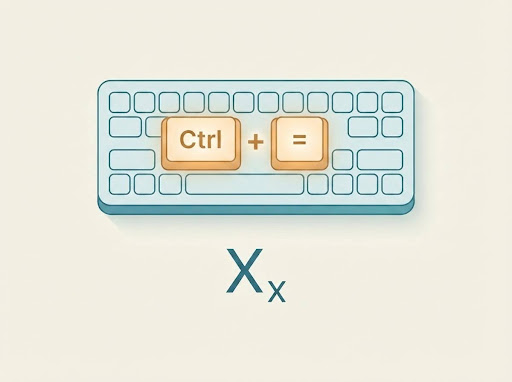
On Windows:
- Select the character or characters you want to convert.
- Press Ctrl + = (the equals key, without Shift).
- Type the rest of your text normally — subscript stays active until you toggle it off with the same shortcut.
To remove it, select the subscript text and press Ctrl + = again, or press Ctrl + Spacebar to clear all character formatting at once.
If you’d rather not memorize a shortcut:
- Select the text.
- On the Home tab, click the small arrow in the bottom-right corner of the Font group (or press Ctrl + D) to open the Font dialog box.
- Under Effects, check Subscript, then click OK.
This same dialog has an Offset field, which lets you fine-tune how far below the baseline the text sits — useful if the default subscript looks too small or too low for your font.
On Mac: the shortcut is Command + =. A known issue is that macOS reserves a similar key combination for the system’s built-in Zoom accessibility feature, so on some Macs pressing the Word subscript shortcut zooms the screen instead of formatting the text. If that happens, use the Font dialog instead (Command + D, then check Subscript under Effects), or go into System Settings → Accessibility → Zoom and turn off or reassign the conflicting keyboard shortcut.
How to subscript and superscript in Word, side by side: the two shortcuts are deliberately similar — Ctrl + = for subscript, Ctrl + Shift + = for superscript — so once you know one, the other is a one-key difference (add Shift).
How to Subscript in Excel
Excel doesn’t have a single default keyboard shortcut for subscript the way Word does, and there’s a practical reason: subscript formatting in Excel only applies to text characters inside a cell, not to numbers being used in calculations or to formula results. If a cell contains =SUM(A1:A10), you can’t subscript part of that output — the formatting only works once a value is entered or displayed as text.
On Windows:
- Double-click the cell (or press F2) to enter edit mode, then highlight only the character you want to lower — for example, just the “2” in “H2O”.
- Press Ctrl + 1 to open the Format Cells dialog box.
- Press Alt + B to jump straight to the Subscript checkbox (or click it manually), then press Enter.
Note the order matters: press and release Ctrl + 1 first, then press Alt + B — these should not be held down simultaneously.
On Mac: press Command + 1 to open Format Cells, then click the Subscript checkbox under Effects and select OK.
If you use subscript often, add a permanent button for it: click the dropdown arrow on the Quick Access Toolbar, choose More Commands, select Commands Not in the Ribbon, find Subscript, and add it. From Excel 2016 onward, this gives you a one-click subscript button without opening the dialog box each time.
Note for Excel on the web: the Format Cells dialog is available, but Quick Access Toolbar customization isn’t. If you’re collaborating between Excel desktop and Excel for the web, consider using Unicode subscript characters instead (covered further down) for formatting that survives the switch.
How to Subscript in Google Docs
Google Docs applies subscript the same way across Windows and Chrome OS, and Mac swaps Ctrl for Command.
Keyboard shortcut:
- Windows / Chrome OS: Ctrl + , (comma)
- Mac: Command + , (comma)
Menu path:
- Select the text, number, or symbol you want to format.
- Click Format in the menu bar.
- Hover over Text, then click Subscript.
Like Word, the shortcut works two ways: apply it to text you’ve already typed by selecting it first, or turn it on before typing so everything you enter comes out as subscript until you press the shortcut again to turn it off.
On the Google Docs mobile app (Android or iOS), there’s no physical keyboard shortcut path by default. Instead:
- Tap the pencil icon to enter editing mode.
- Select the character you want to format.
- Tap the Format icon (an “A” with lines).
- Under the Text tab, tap the X₂ button.
For equations specifically: if you’re inside Google Docs’ Equation Editor (Insert → Equation), the shortcuts are different — press Shift + – for subscript and Shift + 6 for superscript, and you need to select equation mode before typing the character.
One quirk worth knowing: Google Docs doesn’t auto-detect chemical formulas or math expressions. Typing “H2O” won’t automatically lower the 2 — you always have to select it and apply subscript manually.
How to Subscript in PowerPoint
PowerPoint is the outlier among Microsoft’s own apps: Microsoft’s official documentation for PowerPoint doesn’t list a dedicated keyboard shortcut for subscript the way it does for Word. The reliable, version-independent method is the Font dialog box.
On Windows:
- Select the text you want to format.
- Right-click and choose Font from the context menu — or press Ctrl + T, which opens the Font dialog directly in most current PowerPoint versions.
- Under Effects, check Subscript, then click OK.
Some users find that Ctrl + = also works in newer PowerPoint builds (mirroring Word’s shortcut), but since Microsoft doesn’t document this as a guaranteed shortcut, the Font dialog is the method to rely on if you need it to work consistently.
On Mac: right-click the text and choose Font, or press Command + T to open the same dialog, then check Subscript.
Good to know: subscript formatting works inside table cells and SmartArt text boxes the same way it works in a regular text placeholder. If the subscript character looks too small once applied (PowerPoint reduces it to roughly 58–65% of the surrounding font size by default), select it and either increase its font size manually or reduce the Offset percentage in the Font dialog to bring it closer to the baseline without shrinking it further.
How to Subscript in Canva
This is the part of the topic most existing tutorials get wrong or leave outdated. For a long time, Canva genuinely had no subscript or superscript control, and the only workaround was stacking two text boxes or pasting pre-formatted Unicode characters. That’s no longer the case — Canva’s help documentation now lists a native Text position control with dedicated Subscript and Superscript options.

To apply native subscript in Canva:
- Select the text box, then double-click to highlight only the specific character you want to lower.
- On the toolbar, click Advanced settings, then More settings.
- Under Text position, choose Subscript.
- To remove it later, select the same text and choose None under Text position.
This applies real formatting to the selected character within the same text box — you don’t need a second text box or a font that supports special glyphs.
If you’re on an older Canva design or the option doesn’t appear: the fallback is pasting a pre-formatted Unicode subscript character (like ₂ or ₙ) directly into the text box, or creating a second, smaller text box for just the subscript character and nudging it into position. This still works and is useful for characters that don’t have a clean automatic subscript rendering in your chosen font.
On the Canva mobile app: the Advanced Text Formatting panel is more limited on small screens; pasting a Unicode subscript character copied from a generator or from Wikipedia’s Unicode subscripts reference is the more consistent mobile approach.
How to Subscript on Mac (Consolidated Cheat Sheet)
Because Mac shortcuts substitute Command for Ctrl but aren’t always a clean one-to-one swap, here’s every app in one place:
| App | Mac Shortcut |
| Word | Command + = |
| Excel | Command + 1, then check Subscript |
| Google Docs | Command + , |
| PowerPoint | Command + T, then check Subscript |
| Canva | No shortcut — use Advanced settings → More settings → Text position |
The most common Mac-specific problem: the Word subscript shortcut (Command + =) can conflict with macOS’s built-in Zoom accessibility feature, which uses a similar key combination to zoom the screen. If pressing the shortcut zooms your display instead of formatting your text, don’t assume Word is broken — open System Settings → Accessibility → Zoom and either disable the keyboard shortcut for Zoom or reassign it, then try Word’s shortcut again. Alternatively, skip the shortcut entirely and use the Font dialog (Command + D in Word) instead.
Using Unicode Subscript Characters Instead of Formatting
There’s a second way to get a subscript-looking character that doesn’t rely on any app’s formatting feature at all: typing the actual Unicode subscript character, such as ₀ ₁ ₂ ₃ ₄ ₅ ₆ ₇ ₈ ₉, or the subscript versions of a small set of symbols like ₊ ₋ ₍ ₎.
The advantage is portability — a Unicode subscript character stays subscript when pasted into a plain-text field, a chat app, a spreadsheet cell used in a formula, or a Canva text box, because it’s a distinct character rather than a formatting flag layered on top of a regular “2”. The trade-off is coverage: Unicode only defines subscript versions for digits, a handful of math symbols, and a limited set of Latin letters used in phonetic notation — there’s no complete subscript alphabet for general writing, so this method works well for simple chemical formulas and numeric indices but won’t substitute for real subscript formatting in longer or more varied text.
To use this method, copy the character you need from a reliable Unicode reference and paste it directly into your document — no keyboard shortcut is required, and no “subscript mode” needs to be toggled on or off.
How to Remove Subscript Formatting
Removing subscript works the same way you added it, in every app on this list:
- Word: select the text, press Ctrl + = (or Command + = on Mac) again, or press Ctrl + Spacebar to strip all character formatting.
- Excel: reopen Format Cells (Ctrl + 1), then uncheck the Subscript box.
- Google Docs: select the text and press Ctrl + , (or Command + ,) again, or go to Format → Text → Subscript to toggle it off.
- PowerPoint: reopen the Font dialog and uncheck Subscript.
- Canva: select the text and choose None under Text position.
If you used a Unicode subscript character instead of formatting, there’s nothing to “remove” — you simply delete the character and retype it in normal digits.
Troubleshooting: When the Subscript Shortcut Doesn’t Work
The shortcut does nothing in Word or Excel: you’re most likely using the web-based version (Word for the web or Excel Online), where several keyboard shortcuts, including subscript, aren’t fully supported. Use the ribbon button or Font/Format Cells dialog instead.
The shortcut zooms the screen instead of formatting text (Mac): this is the Zoom accessibility conflict described above — disable or reassign the Zoom shortcut in System Settings, or use the Font dialog.
Subscript formatting disappears after copying text between apps: formatting-based subscript (the kind applied via Ctrl+= or a checkbox) can be lost when pasting between different programs, especially into plain-text fields. If you need the subscript to survive a copy-paste into an app that strips formatting, use a genuine Unicode subscript character instead.
Subscript looks too small to read once applied: every app shrinks subscript text automatically as part of the effect. If it’s illegible, select the subscript character and manually increase its font size, or in Word/PowerPoint, open the Font dialog and reduce the Offset percentage so the character sits closer to the baseline without shrinking as much.
Final Words
The core idea is the same everywhere: select the character, then either use a keyboard shortcut (Word and Google Docs both have clean ones) or open a formatting dialog (Excel, PowerPoint, and Canva rely on this more than a keystroke). Once you know which pattern your app follows, subscript stops being something you have to look up every time — and if you ever need a subscript character to survive outside formatted documents entirely, a Unicode character does that job without any app-specific formatting at all.
FAQs
What’s the fastest way to subscript in Word? Select the character and press Ctrl + = on Windows or Command + = on Mac. No menu required.
Why doesn’t Ctrl + = work for subscript in Excel? Excel doesn’t assign subscript to a default keyboard shortcut. Use Ctrl + 1 to open Format Cells, then Alt + B to check the Subscript box, then Enter.
Does Canva support subscript now? Yes. Canva added a native Subscript and Superscript control under Advanced settings → More settings → Text position. Older tutorials that say Canva has no subscript option are describing an earlier version of the editor.
How do I subscript in Google Docs on my phone? Open the document, tap the pencil icon to edit, select the character, tap the Format icon (A with lines), go to the Text tab, and tap X₂.
What’s the difference between subscript and superscript? Subscript lowers a character below the text baseline (used in H₂O); superscript raises it above the baseline (used in x² or footnote markers). Both shrink the character size automatically.
Can I type a subscript number without using any formatting feature? Yes — Unicode has dedicated subscript characters for digits 0–9 and a few math symbols (₀–₉, ₊, ₋). Paste one directly into any text field and it displays as subscript without needing the app’s formatting tool, though there’s no full subscript alphabet available this way.
Why does my Mac zoom in instead of applying subscript in Word? macOS’s built-in Zoom accessibility shortcut can overlap with Word’s Command + = subscript shortcut on some systems. Turn off or reassign the Zoom shortcut in System Settings → Accessibility → Zoom, or use Word’s Font dialog (Command + D) instead.
Does subscript formatting survive when I copy text between apps? Not always. Formatting-based subscript can be lost when pasting into plain-text fields or between certain apps. A genuine Unicode subscript character survives copy-paste more reliably because it’s a distinct character rather than an applied style.