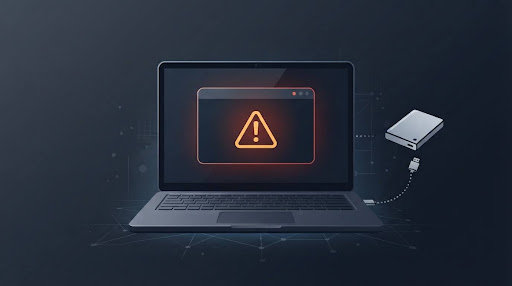
Error 0x800701b1 means Windows can’t find a device it expected to see. The full message reads “Error 0x800701B1: A device which does not exist was specified.” It usually shows up while you’re copying files, installing Windows from a USB drive, or running a disk backup.
This isn’t a virus, and it doesn’t mean your files are gone. It means Windows lost the connection to a drive mid-task — often for a simple, fixable reason.
What Error 0x800701b1 Actually Means
This error code has a specific technical origin, and knowing it helps you troubleshoot faster.
Windows builds this HRESULT from a plain Win32 system error — number 433, named ERROR_NO_SUCH_DEVICEsince HRESULT error codes encode the originating facility (like Win32) and the underlying error code together in their 32 bits, with Win32-facility codes built by wrapping a standard system error number. In plain terms: Windows asked for a specific drive and got no response.
That’s why you’ll see this error with external hard drives, USB flash drives, and external SSDs far more often than with your internal system drive.
What Causes Error 0x800701b1
A handful of causes account for almost every case:
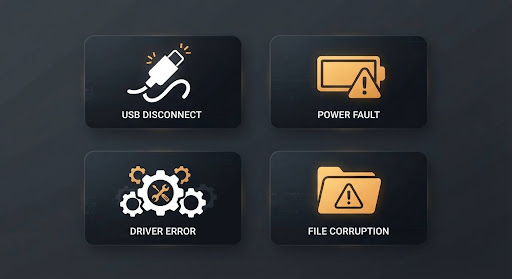
- A loose or unstable USB connection. The most common cause by far.
- Insufficient power to the drive, especially with bus-powered external drives running through USB hubs.
- An outdated, missing, or corrupted driver for the drive or USB controller.
- File system errors on the drive itself.
- Permission issues, where your account doesn’t have access to the folder you’re writing to.
- A file larger than 4GB copied to a FAT32-formatted drive, which FAT32 simply can’t hold.
- A failing or dying drive, which is less common but real — covered separately below.
How to Fix Error 0x800701b1 on Windows 10 and 11
These steps apply to both versions. Menu names differ slightly, and I’ve noted where.
- Restart your PC and retry the task.
Sounds basic, but it clears temporary glitches that trigger this error more often than you’d expect. - Move the drive to a different USB port — ideally USB 3.0.
Use a rear motherboard port if you’re on a desktop, not a front-panel port or an unpowered hub. Loose or underpowered connections are the single biggest cause of this error. - Check the cable and power.
If your external drive is bus-powered (draws power from the USB port itself), plug it into a powered USB hub or a direct port instead of a hub with multiple devices sharing power.
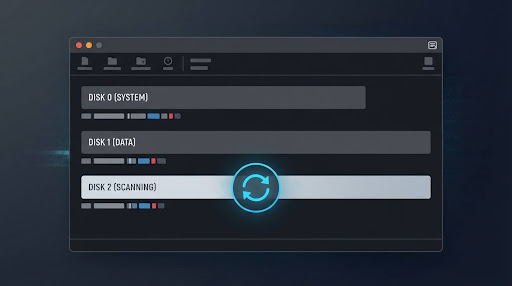
4. Rescan disks in Disk Management.
- Right-click Start and select Disk Management.
- Click Action in the menu bar, then Rescan Disks.
- Wait a few seconds, then retry your file transfer.
- Update or reinstall the drive’s driver.
- Open Device Manager.
- Expand Disk drives, right-click your drive, and select Update driver.
- If that doesn’t help, right-click again and select Uninstall device, then unplug and reconnect the drive so Windows reinstalls it fresh.
- Run CHKDSK to check for file system errors.
- Open Command Prompt as administrator.
- Type chkdsk X: /f (replace X with your drive’s letter) and press Enter.
- Let it complete before retrying your transfer.
- Check security permissions on the drive.
Right-click the drive in File Explorer, go to Properties > Security > Advanced, and confirm your account has full access. If not, you may need to take ownership of the drive.
Don’t take ownership of your system drive (usually C:) using this method — it’s meant for external or secondary drives, not the drive Windows itself runs on.
- Disconnect other peripherals.
If several USB devices are competing for power, unplug everything except the drive you’re working with and try again. - Avoid transferring very large files to FAT32-formatted drives.
FAT32 can’t hold files over 4GB. If that’s the situation, reformat the drive to exFAT or NTFS (this erases the drive, so back up first) or split the file. - Check the drive for physical problems.
If none of the above works, the drive itself may be failing. See the section below on when this points to hardware failure.
Error 0x800701b1 on Windows 11
The underlying cause and fix process are identical to Windows 10 — this is an OS-level Win32 error, not something unique to either version. The only real differences are navigation:
- Disk Management: Right-click Start works the same way on both.
- Device Manager: Also accessible the same way, or through Settings > System > About > Device Manager on Windows 11.
- Windows 11’s redesigned Settings app groups some troubleshooting tools differently, but the actual fixes above apply without modification.
Error 0x800701b1 on SSDs: What’s Different
If you’re seeing this error specifically with an SSD — internal, external, or in a USB enclosure — there’s one extra thing worth checking.
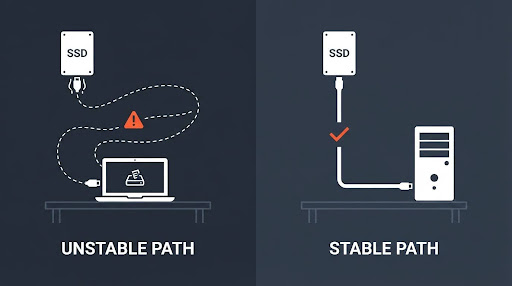
Alt Text: Comparison illustration showing an unstable USB enclosure connection
External SSDs in USB enclosures sometimes briefly drop their connection during large, sustained transfers, like disk imaging or full backups, even when Disk Management shows the drive as healthy in between attempts. This is a connection-path issue, not necessarily a sign the SSD itself is failing.
If this happens repeatedly with an external SSD:
- Move the SSD to a rear motherboard USB 3.x port, not a front panel port or hub.
- Try a different, known-good USB cable — cheap or damaged cables are a common hidden cause.
- If the enclosure supports it, connect the SSD directly via SATA (for a desktop) to test whether the error disappears entirely with a stable, direct connection.
If the transfer completes successfully over a direct or more stable connection, that confirms the original USB path was the problem, not the drive.
When It Might Mean Drive Failure
Most cases of this error resolve with the steps above. But treat it as a serious warning sign if:
- The error happens repeatedly across different USB ports, cables, and computers.
- Disk Management shows the drive as “Not Initialized,” “RAW,” or missing entirely.
- You hear unusual clicking or grinding sounds from a mechanical hard drive.
- CHKDSK reports errors it can’t fix, or the drive disappears mid-scan.
If any of these apply, back up whatever data you can access immediately, and treat further troubleshooting carefully — running repeated scans and repairs on a genuinely failing drive can sometimes make data recovery harder, not easier.
FAQ
Does error 0x800701b1 mean I’ve lost my files?
Not usually. It means Windows lost connection to the drive during an operation — most often due to a loose cable, power issue, or driver problem, not permanent file loss.
Why does this happen when installing Windows from a USB drive?
It usually means the installation media was created incorrectly, or the USB port/cable dropped the connection mid-installation. Re-creating the USB installer with the official Microsoft Media Creation Tool often resolves it.
Is this error specific to Windows 10 or Windows 11?
No. It’s a Win32-level error that appears identically on both, since the underlying cause and fix are the same regardless of Windows version.
Can a bad USB cable really cause this?
Yes, and it’s one of the most common causes. Cheap, damaged, or overly long USB cables can cause intermittent connection drops that trigger exactly this error.
Should I run CHKDSK on my system drive (C:) for this error?
Only if the error is actually happening on your C: drive, which is uncommon. For external drives or a secondary internal drive, running CHKDSK on that specific drive is safe and often helpful.
Will reformatting the drive fix it?
Sometimes, if the cause is file system corruption. But reformatting erases everything on the drive, so back up any accessible data first, and only use this as a later step, not a first attempt.
Why does this happen more with external SSDs than internal ones?
Because external SSDs typically connect through a USB enclosure and cable, both of which introduce more potential points of connection failure than an internal, directly wired drive.