If your inbox is drowning in junk, the fastest fix depends on what you’re trying to stop: a single pushy sender, an entire flood of promotional garbage, or emails from sites you never should have signed up for in the first place. Each needs a slightly different move — blocking, reporting as spam, or unsubscribing — and using the wrong one is why spam keeps coming back even after you think you’ve dealt with it.
This guide covers how to stop getting spam emails on every major platform: Gmail, Outlook, Yahoo Mail, iPhone, and Android, plus the one method that actually stops spam long-term instead of just rerouting it.
Why You’re Suddenly Getting So Much Spam
Before fixing it, it helps to know how spammers got your address in the first place:
- Data breaches — a company you signed up with got hacked, and your email ended up in a leaked database
- Web scraping — bots crawl websites, forums, and social media looking for anything with an “@” symbol
- List selling — some companies quietly sell email lists to marketers or other spammers
- Guessed addresses — common formats like info@ or firstname.lastname@ get targeted automatically
A sudden spike usually points to the first two. If you want to check whether your address is already circulating from a breach, see the spam checker section further down — it’s a genuinely useful five-second diagnostic before you spend time reconfiguring filters.
Blocking vs. Reporting Spam vs. Unsubscribing
These get mixed up constantly, and picking the wrong one is a common reason spam keeps returning.
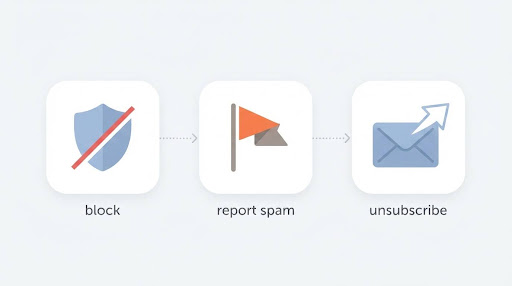
| Action | What it does | Use it when |
| Block sender | Future emails from that exact address are automatically routed to Spam/Junk (not rejected outright — most providers still deliver them, just out of sight) | You know exactly who’s bothering you and want them gone specifically |
| Report as spam/junk | Trains the provider’s filter to recognize similar messages from anyone, not just this sender | The email is unsolicited, suspicious, or clearly mass-sent |
| Unsubscribe | Removes you from a legitimate mailing list at the source | The sender is a real company or newsletter you don’t want to hear from anymore |
One rule worth remembering: never click “Unsubscribe” on an email you don’t recognize or trust. On legitimate marketing emails it works as intended. On spam, it confirms to the sender that your address is active and being read — which usually means more spam, not less.
How to Stop Spam Emails in Gmail
Gmail blocks the vast majority of spam before it reaches you, but nothing catches everything, and Gmail’s controls are the same ones behind the “how to stop unwanted emails in gmail in mobile” and “how to stop receiving emails from websites on gmail” searches — most guides only cover desktop, so here’s mobile specifically.
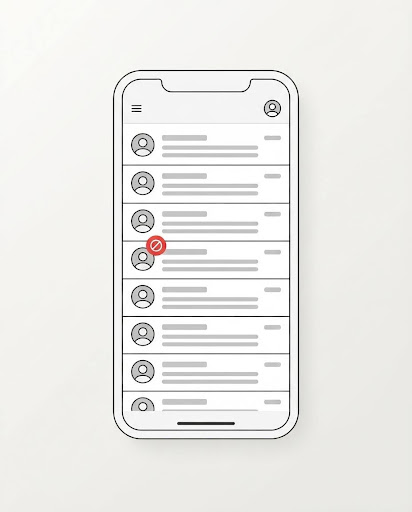
Block a sender in Gmail (Web)
- Open the email from the sender you want to block
- Click the three-dot More menu next to Reply, in the top right of the message
- Select Block “[sender name]”
- Confirm — all future messages from that address go straight to Spam
Block a sender in Gmail (Android/iPhone app)
- Open the message from the sender
- Tap the three-dot More menu in the top right
- Tap Block “[sender]”
According to Gmail’s official help documentation, once blocked, future emails from that address are automatically routed to your Spam folder rather than your inbox — it doesn’t stop delivery to Gmail’s servers entirely, just keeps it out of your view.
Report spam in Gmail (trains the filter, not just one sender)
Open the email, tap the three-dot menu, and select Report spam. This is more powerful than blocking alone because Gmail’s spam-detection AI uses these reports to get better at catching similar messages from other senders too.
Stop unwanted emails in Gmail on mobile (the secondary-keyword case)
If your Gmail inbox on your phone is filling up with clutter that isn’t quite “spam” — repeated promos, newsletters you forgot signing up for — you have two mobile-friendly options:
- Unsubscribe directly from the app: Open the email; Gmail often shows an Unsubscribe link near the sender’s name for bulk/marketing mail. Tap it once — no need to open the website.
- Create a filter from the web version: Filters (Settings → See all settings → Filters and Blocked Addresses) aren’t available inside the Gmail mobile app itself, so for anything more advanced than block/unsubscribe/report, you’ll need to switch to Gmail on a browser once, request “Desktop site” if on mobile browser, and set the filter there. It applies across all your devices afterward.
How to stop receiving emails from websites on Gmail
For emails from a specific website or service you registered with:
- Search for emails from that sender in Gmail’s search bar
- Open one and check for an Unsubscribe link (Gmail surfaces this automatically for most legitimate senders next to the sender’s name)
- If there’s no unsubscribe link and the site keeps emailing you anyway, block the sending domain instead: Settings → See all settings → Filters and Blocked Addresses → Create a new filter → enter the domain (e.g., @example.com) in the “From” field → Create filter → check Delete it
Unblock a sender in Gmail
Settings → See all settings → Filters and Blocked Addresses tab → check the address → Unblock selected addresses.
How to Stop Spam Emails in Outlook
Outlook’s blocking and junk filtering apply the same way whether you’re using new Outlook, classic Outlook, or Outlook.com in a browser.
Block a sender
- Right-click the message from the sender
- Select Junk → Block Sender (or Block in newer Outlook versions)
- Future messages from that address move directly to the Junk Email folder
Add a blocked sender or domain manually
- Go to Settings → Mail → Junk email
- Under Blocked senders and domains, select Add blocked sender
- Enter the email address, or a full domain (like spamdomain.com) to block everyone from that domain at once
- Select OK, then Save
Microsoft’s official documentation notes that Outlook can hold up to 10,000 combined entries across your safe and blocked senders lists — if you’re hitting that limit, block by domain instead of individual addresses.
Adjust the Junk Email filter sensitivity
Outlook lets you raise the aggressiveness of its filter under Junk Email Options, choosing between the default setting, a stricter “High” setting, or an “Exclusive” mode that only accepts mail from people already in your Safe Senders list. Going stricter catches more spam but also risks catching legitimate mail, so it’s worth checking your Junk folder occasionally after changing this.
Report junk/phishing
Select the message, click the Junk dropdown in the toolbar, and choose Junk to move it, or the dropdown arrow next to it for Phishing if the email is trying to steal information.
How to Stop Spam Emails in Yahoo Mail
Yahoo separates its blocking tools by platform more than most providers — the desktop web version has full manual blocking, while the mobile app relies mainly on the spam-report flow.
Block a sender (Yahoo Mail, desktop web)
- Go to Settings (gear icon) → More Settings
- Select Security and Privacy
- Under Blocked addresses, click Add
- Enter the email address (or a full domain with the @ symbol, e.g. @spamdomain.com) and click Save
Yahoo allows up to 1,000 blocked addresses per account. Free accounts can block up to 3 domains; Yahoo Mail Plus subscribers can block up to 500.
Mark as spam (Yahoo Mail app — iOS/Android)
The Yahoo Mail mobile app doesn’t have a direct “block” button for individual senders — instead:
- Open the email, or select it from your inbox
- Tap the three-dot More icon
- Select Mark as spam
According to Yahoo’s own help documentation, this both moves the message to Spam and trains Yahoo’s filter to catch similar messages from that sender automatically going forward.
Create a filter for pattern-based blocking
If you’ve used up your blocked-address limit, or want to block a whole category of sender (like anything containing a certain keyword), go to Settings → More Settings → Filters, and set up a rule that moves or deletes matching mail automatically. This has no cap, unlike the blocked-addresses list.
How to Stop Spam Emails on iPhone
The iPhone Mail app doesn’t have its own independent spam filter the way Gmail or Outlook does — filtering mostly happens on the server side of whatever email provider you’re using (iCloud, Gmail, Outlook, etc.), and the Mail app adds a thinner layer of client-side control on top.
Block a sender in Apple Mail
- Open an email from the sender
- Tap their name/email address at the top of the message
- Scroll down and tap Block this Contact
Alternatively, block proactively without opening a message: Settings → Mail → Blocked → Add New, then enter the sender’s address directly.
Mark an email as junk
- Swipe left on the message in your inbox
- Tap More
- Tap Move to Junk
One thing worth flagging clearly, because it trips a lot of people up: marking a message as junk does not block the sender — it only trains the local junk filter. The sender can still email you; future messages just get sorted automatically (and imperfectly) into Junk.
A gotcha specific to iPhone: blocking removes Unsubscribe
If you block a sender first and later want to unsubscribe from their list, you won’t see the Unsubscribe banner anymore — Apple hides it for blocked contacts. To unsubscribe after blocking, go to Settings → Mail → Blocked, remove them from the list, then use Unsubscribe from an email, and re-block afterward if you still don’t want their mail.
For iCloud Mail users specifically
iCloud’s server-side filter is separate from the Mail app’s local rules. If junk keeps arriving despite blocking on your iPhone, log into iCloud.com, find the message in Junk, and mark it Not Junk or delete it from there — this retrains the filter at the server level, which is more effective than only sorting on the device.
How to Stop Spam Emails on Android
Android itself doesn’t filter email at the operating-system level (its built-in spam protection targets calls and text messages) — email filtering happens inside whichever app you use, most commonly Gmail.
If you use the Gmail app on Android
Follow the Gmail steps above — Block sender, Report spam, and the Filters/blocked-addresses list (set up via a browser) all sync across every device signed into that Google account, including Android.
If you use Outlook or Yahoo Mail apps on Android
The same platform-specific steps in the sections above apply — blocking and filtering happen on the account itself, not the Android device, so anything you set up in the Outlook or Yahoo web interface carries over automatically to the Android app.
General Android tips that help regardless of app
- Keep your email app updated — spam-detection models improve with updates
- Avoid opening attachments or tapping links in messages from unfamiliar senders, even if the subject line looks urgent
- If a spam wave is unusually heavy, check your account’s recent security activity (Google’s Security Checkup, for Gmail users) in case it’s tied to a compromised password rather than ordinary spam
How to Block Spam Emails Permanently
Blocking and filtering fight spam one sender at a time, which is why it can feel endless — spammers simply switch to a new address. The more durable fix is to stop giving out your real email address at all.
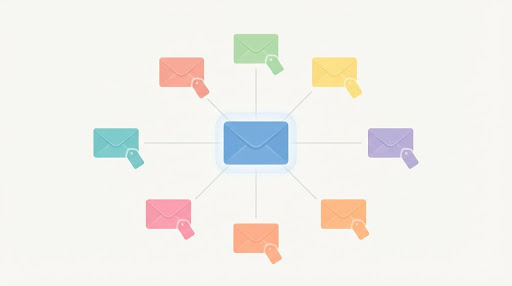
Email aliases are unique, disposable addresses that forward to your real inbox. You give the alias to a website or service instead of your real address; if that alias starts getting spammed, you disable just that one alias without touching your main inbox.
A few widely used alias options:
- Apple Hide My Email — built into iCloud+, generates random @privaterelay.appleid.com addresses on the fly during sign-ups
- Firefox Relay — browser extension; free plan includes five aliases
- Gmail’s “plus addressing” — add +anything before the @ symbol in your existing Gmail address (e.g., you+shopping@gmail.com) — mail still reaches your main inbox, and you can filter or block based on what follows the +. It’s free and requires no extra app, though it’s easy for a determined spammer to strip the +tag and email your base address directly, so it’s better for organizing than for total anonymity.
The core principle: use a different alias for every service. If you reuse the same one everywhere, you lose the ability to trace which sign-up leaked your address — and disabling that alias means losing mail from every service tied to it.
Free Email Spam Checker: Should You Use One?
A “free email spam checker” usually refers to one of two different tools, and it’s worth knowing which you actually need:
- Breach checkers (like Have I Been Pwned) — you enter your email address and it tells you whether that address has appeared in known data breaches. This doesn’t block spam directly, but it explains why you’re getting it, and flags whether you should also change passwords on affected accounts.
- Sender/domain reputation checkers — used mostly by people sending email (marketers, businesses) to check whether their own outgoing mail looks like spam to filters. If you’re trying to stop receiving spam, this isn’t the tool you need — it’s aimed at the sending side, not the receiving side.
For most people dealing with a flooded inbox, checking a breach database once is a useful five-minute step, but it won’t reduce spam volume by itself — the blocking, filtering, and alias steps above do that work.
Spam vs. Phishing: Know the Difference
Not all unwanted email is equally risky. Spam is mostly a nuisance — irrelevant or unsolicited but not always dangerous. Phishing is a deliberate attempt to steal information by impersonating someone trustworthy, and it deserves more caution than a block/delete.
Warning signs of phishing specifically:
- Requests for your password, banking details, or verification codes over email — legitimate companies don’t ask for these this way
- A sense of urgency or threats (“your account will be suspended in 24 hours”)
- Links that, when you hover over them, don’t match the company’s real domain
- Unexpected attachments, especially .exe, .zip, or macro-enabled Office files
If you suspect phishing rather than ordinary spam, use your provider’s Report phishing option specifically (Gmail and Outlook both offer this separately from “report spam”) rather than just deleting the message — it helps the platform flag the sender for everyone, not just you.
For businesses specifically, phishing is one of the more common entry points for a wider security incident, and blocking spam at the individual-inbox level is only part of the picture — see Hooriya Tech’s guide to cybersecurity measures every business should adopt for the broader set of protections, including staff training on recognizing exactly these kinds of emails.
FAQs
Why am I suddenly getting way more spam than usual?
Usually one of two things: your email address showed up in a recent data breach, or you signed up for something recently that either sold your address or didn’t have great security. A quick check with a breach database (see above) can confirm the first possibility.
Is it safe to click “Unsubscribe” on a spam email?
Only if you recognize and trust the sender. Unsubscribing from a legitimate newsletter works as intended. Clicking Unsubscribe on obvious spam confirms your address is active and monitored, which often increases spam rather than reducing it — report it as spam instead.
Does blocking a sender stop their emails from being delivered at all?
No — on Gmail, Outlook, and Yahoo, blocking reroutes future messages to your Spam or Junk folder rather than preventing delivery outright. The message still technically arrives; it’s just kept out of your inbox.
Will changing my email address get rid of spam for good?
It gives you a clean start, but it’s not permanent — your new address can eventually end up in a breach or get scraped the same way the old one did. Using unique aliases per service is a more durable long-term approach than starting over with one new address.
What’s the difference between marking an email as spam and blocking the sender?
Reporting spam helps train the provider’s filter to catch similar messages from anyone, including senders you haven’t seen before. Blocking only affects that specific address. Most people benefit from doing both — report first (to help the filter learn), then block if the sender keeps coming back under the same address.
Should I reply to a spam email asking them to stop?
No. Replying — even to say “stop emailing me” — confirms to the sender that your address is active, which typically invites more spam rather than less.
Why does junk mail still get through even after I’ve blocked several senders?
Spammers frequently rotate through new addresses and domains to get around blocklists. If you’re blocking the same type of spam repeatedly, a keyword- or domain-based filter (available in Gmail, Outlook, and Yahoo) is more effective than blocking one address at a time.