If you opened System Information on your PC and saw “American Megatrends Inc.” next to BIOS Version/Date, you’re not alone — and it doesn’t necessarily mean you own an AMI-branded motherboard. It means your computer’s BIOS was built on AMI’s Aptio firmware, something used across most Dell, HP, ASUS, MSI, Gigabyte, ASRock, and Lenovo machines. This guide walks through checking your current version, getting the correct American Megatrends BIOS update, and installing it without risking your system.
Quick answer: Check your exact BIOS version with msinfo32, find your motherboard or PC model, download the matching update from your manufacturer’s support page (not directly from AMI, in almost all consumer cases), then flash it either from inside Windows or through your BIOS/UEFI’s built-in update tool while the PC stays on stable power throughout.
What “American Megatrends Inc.” Actually Means in Your BIOS
American Megatrends International (AMI) doesn’t sell finished BIOS firmware straight to most end users. It licenses its Aptio firmware core to motherboard and laptop manufacturers, who then customize it for their specific hardware. That’s why a Dell laptop, an ASUS motherboard, and a no-name mini PC can all show “American Megatrends Inc.” as the BIOS vendor in msinfo32, even though they’re completely different products from different companies.
This distinction matters because it determines where you should download your update from:
- If your PC has a brand name on it (Dell, HP, Lenovo, Acer, ASUS, MSI, Gigabyte, ASRock, etc.): get the BIOS update from that manufacturer’s official support page, using your exact model number or service tag.
- If you built a custom PC or use a genuinely AMI-branded board: you may need AMI’s own firmware update utility, though even then the actual BIOS image typically comes from your motherboard maker.
Installing a BIOS file meant for a different model — even one from the same brand — is one of the most common causes of a BIOS update going wrong.
Do You Actually Need to Update Your BIOS?
A BIOS update isn’t like a routine Windows update. It’s worth doing when:
- Your PC doesn’t recognize newly installed hardware (a new CPU, RAM, or drive)
- You’re seeing stability issues, random reboots, or boot failures that your manufacturer’s release notes list as fixed
- The manufacturer has published a security fix for the BIOS
- You need a specific feature (TPM support for Windows 11, for example)
It’s generally not necessary if your PC is running fine and there’s no specific problem you’re trying to solve. Updating “just because a newer version exists” carries some risk for very little benefit.
Before You Start: Precautions That Prevent a Bricked PC
BIOS updates are low-risk when done correctly, but an interrupted flash can leave a PC unable to boot. Take these steps first:
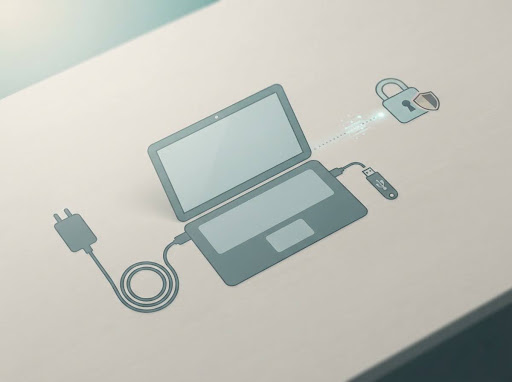
- Stay on stable power. Plug a desktop into a surge-protected outlet; for a laptop, keep it on AC power and don’t rely on battery, even if it shows a full charge.
- Don’t skip, cancel, or power off during the flash. Let the process finish completely, even if it looks stuck for a minute — some updates pause during specific stages.
- Back up your files. BIOS updates rarely damage data, but it’s standard precaution before any firmware-level change.
- Suspend BitLocker if it’s enabled. Windows may prompt for your BitLocker recovery key after a BIOS update if encryption isn’t temporarily suspended first. Go to Settings > Privacy & Security > Device Encryption (or the BitLocker control panel) and turn it off before updating, then re-enable it afterward.
- Note your current BIOS settings. Some updates reset custom BIOS settings (boot order, fan curves, XMP/overclock profiles) to default.
If your laptop or PC has files scattered across drives you haven’t backed up, it’s worth resolving any storage issues first — Hooriya Tech’s guide on fixing a USB drive that isn’t showing up covers how to get external drives recognized so you can back up data or prepare a bootable USB flash drive for the update itself.
Step 1: Find Your Exact BIOS Version and Motherboard Model
You need two pieces of information before downloading anything: your current BIOS version and your exact hardware model.
- Press Windows key + R, type msinfo32, and press Enter.
- In System Information, look at:
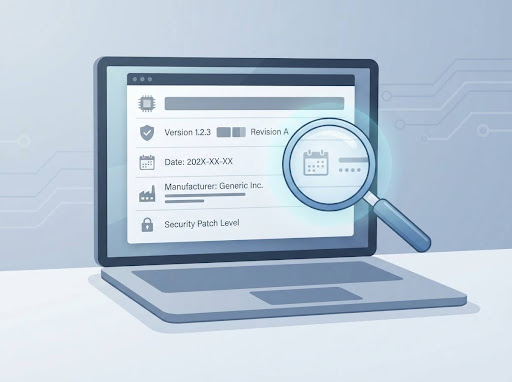
- BIOS Version/Date — this is your current firmware version and release date, and it’s where “American Megatrends Inc.” typically appears.
- System Model — your PC or motherboard model.
- BaseBoard Manufacturer/Product — useful if the System Model field is unhelpful (common on custom-built desktops).
If those fields are vague or blank — which happens on some custom builds — a free tool like CPU-Z can identify the exact motherboard manufacturer and model under its Mainboard tab.
Step 2: Download the Correct American Megatrends BIOS Update
With your exact model and current version confirmed:
- Go to your PC or motherboard manufacturer’s official support/downloads page (Dell, HP, ASUS, MSI, Gigabyte, ASRock, Lenovo, Acer, etc.).
- Search using your exact model number or service tag — not just the brand name.
- Filter downloads by BIOS or Firmware.
- Compare the listed version against your current one from msinfo32. Only download it if it’s genuinely newer than what you have.
- Read the release notes. They tell you what the update actually fixes, and whether it applies to your specific hardware revision.
Never download a BIOS file from a third-party site, a forum attachment, or a generic “BIOS download” aggregator. Firmware files are model- and sometimes revision-specific; a mismatched file is the single biggest cause of update failures.
Step 3: Update BIOS on Windows 10 or Windows 11 (In-OS Method)
Many manufacturers now let you flash BIOS directly from Windows, which is the simplest option when it’s available:
- Dell: Dell SupportAssist or Dell Command | Update can detect and install BIOS updates automatically, or you can run the downloaded .exe manually.
- ASUS: MyASUS shows a “BIOS Update for Windows” option on supported models.
- HP, Lenovo, Acer: Their respective support apps (HP Support Assistant, Lenovo Vantage, Acer Care Center) often list BIOS updates alongside driver updates.
- Generic downloaded .exe: If your manufacturer just provides an executable, run it as Administrator and follow the on-screen prompts. The PC will typically restart one or more times during the process.
This method works identically on Windows 10 and Windows 11 — the manufacturer’s updater handles the process regardless of OS version. The main practical difference on Windows 11 systems is that some BIOS updates also enable or adjust TPM 2.0 and Secure Boot settings needed for Windows 11 compatibility, so don’t be surprised if those settings appear or change after the update.
Step 4: Update BIOS from Inside the BIOS/UEFI (USB Method)
If your model doesn’t support in-Windows flashing, or the in-OS method fails, use the built-in flash utility inside the BIOS/UEFI itself:
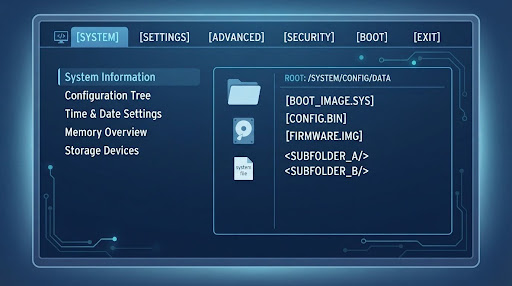
- Format a USB flash drive as FAT32.
- Copy the downloaded BIOS file to the root of the USB drive — not inside a folder (check your manufacturer’s instructions, as some ask for a specific filename or subfolder).
- Plug the USB drive into the PC and restart it.
- Press the key to enter BIOS/UEFI setup during startup — commonly Del, F2, or F10 (check your manufacturer’s documentation for the exact key).
- Locate the built-in flash utility, listed under Tools or Advanced depending on the brand (see table below).
- Select the USB drive, then select the BIOS file.
- Confirm and let the flash complete without interruption — this typically takes a few minutes.
- The system will reboot automatically once finished.
Common In-BIOS Flash Utility Names by Brand
| Manufacturer | Built-in Flash Utility | Typical Location |
| ASUS | EZ Flash / EZ Flash 3 | Tools menu |
| Gigabyte | Q-Flash | Save & Exit or main screen |
| MSI | M-Flash | Utilities section |
| ASRock | Instant Flash | Main screen or Tools |
| AMI (generic Aptio boards) | AMI Firmware Update Utility | Varies by OEM implementation |
Using the AMI Firmware Update Utility Directly
On systems without a dedicated OEM flash tool — some industrial boards, mini PCs, and certain custom builds — you may need AMI’s own AFU (AMI Firmware Update) Utility, sometimes labeled AFUWIN (Windows) or accessed through the EFI/UEFI shell for command-line flashing. This is a more advanced path generally intended for systems where the manufacturer explicitly documents this route; check your specific hardware documentation before using it, since AFU commands vary by utility version and incorrect flags can affect boot block or Management Engine regions.
What to Do If the BIOS Update Fails
Most consumer motherboards and laptops from the last several years include some form of BIOS recovery protection, but recovery steps differ by brand:
- Don’t repeatedly try to reboot or reflash — this can make a failed update worse.
- Check your manufacturer’s specific BIOS recovery procedure (often a key combination held during power-on, or a dedicated recovery button on some motherboards).
- If the PC won’t POST at all, contact your manufacturer’s support — some issues at this stage require a service center or a BIOS chip replacement, particularly on laptops.
- If Windows fails to boot after an otherwise successful BIOS flash and BitLocker was active, you’ll likely need your BitLocker recovery key to unlock the drive — this is why suspending BitLocker beforehand matters.
How to Confirm the Update Worked
Reopen msinfo32 after the reboot and check the BIOS Version/Date field again. It should now match the version number from the file you downloaded. If it still shows the old version, the update likely didn’t apply — repeat the download and flash process, double-checking the file matches your exact model.
FAQs
Does updating BIOS delete my files?
No, a BIOS update doesn’t touch your storage drives or personal files. The main risk to data comes indirectly, through BitLocker locking your drive if encryption wasn’t suspended beforehand.
Can I update American Megatrends BIOS directly from AMI’s website?
In most consumer cases, no — you should get the update from your PC or motherboard manufacturer, since they customize AMI’s Aptio firmware for their specific hardware. AMI’s own utilities are mainly relevant for board makers, industrial systems, or setups where your specific manufacturer explicitly points you to AMI’s tools.
Is it safe to update BIOS on Windows 11 the same way as Windows 10?
Yes, the update process itself is the same. The difference is that some BIOS updates on Windows 11 systems also adjust TPM 2.0 or Secure Boot settings tied to Windows 11’s hardware requirements.
What does “BIOS Version/Date American Megatrends Inc.” actually tell me?
It tells you your firmware is built on AMI’s Aptio BIOS core and shows the version number and release date currently installed. It doesn’t tell you who manufactured your PC or motherboard — check System Model or BaseBoard fields for that.
How long does a BIOS update take?
Typically a few minutes, though it varies by method and file size. Never interrupt it, even if progress appears to pause.
What happens if my PC loses power during the update?
This is the primary cause of a “bricked” motherboard. It’s why staying on stable, uninterrupted power throughout the process matters more than almost any other precaution here.
Do I need to update the BIOS every time a new version is released?
No. Update when you have a specific reason — a compatibility issue, a needed feature, or a documented security fix — rather than purely for the sake of running the newest version.