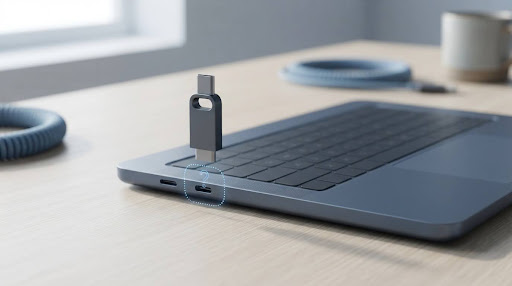
A USB drive that won’t show up almost always comes down to one of five things: power, connection, drive letters, file system, or a dying drive. Work through the checks below in order, and don’t reach for reformatting until you’ve ruled out the simpler causes — formatting erases the drive.
Quick check before anything else: plug the drive into a different USB port, ideally a rear port on a desktop rather than a front panel or hub. This alone fixes a large share of cases.
Check the Basics First
These checks apply whether you’re on Windows, Mac, a phone, or a games console — start here no matter what device you’re using.
- Try a different USB port. Front-panel ports and unpowered hubs are the most common source of “the drive just won’t appear” problems. Use a port on the back of a desktop PC if you can.
- Skip the hub. If the drive is plugged into a USB hub, connect it straight into the computer instead. Cheap or unpowered hubs often can’t supply enough current for a flash drive or external hard drive to spin up and enumerate properly.
- Check for a physical power switch. Some larger external hard drives have their own power button or a separate power cable. If it’s not powered, no computer will see it.
- Try a different cable. USB cables fail more often than people expect, especially cheap or long ones. A cable that charges a phone fine can still fail to carry data.
- Test the drive on a second computer. If a second, known-working computer doesn’t detect the drive either — not even in Disk Management — the drive itself is very likely the problem, not your PC.
If the drive still doesn’t appear after these checks, move to the section for your operating system below.
USB Drive Not Showing Up in File Explorer or Disk Management (Windows)
If a USB drive doesn’t appear in File Explorer, the first thing to check on any version of Windows is Disk Management, not File Explorer. Disk Management shows every drive Windows has detected at the hardware level, even ones that aren’t currently assigned a drive letter — so it tells you whether Windows can see the drive at all.
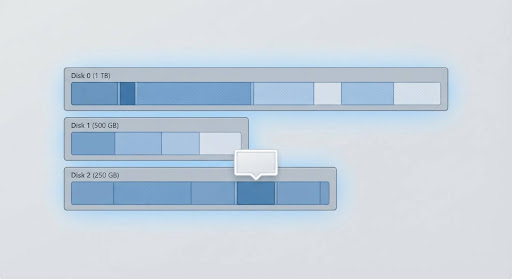
To open it, right-click the Start button and choose Disk Management (Windows 10 and 11), or go to Control Panel > Administrative Tools > Computer Management > Disk Management on Windows 7.
If the drive appears in Disk Management, one of these is usually true:
| What you see | What it means | What to do |
| Drive is listed but has no drive letter | Windows sees it but hasn’t assigned a way to access it | Right-click the partition, choose Change Drive Letter and Paths, then Add and pick a letter |
| Drive shows as “Unallocated” with a black bar | The drive is empty and has never been formatted, or the partition table is gone | Right-click the unallocated space and choose New Simple Volume to create and format a partition |
| Windows prompts you to format the drive when you insert it | The drive uses a file system Windows can’t read — commonly APFS from a Mac or ext4 from Linux | Don’t format it yet. Copy the files off using the original device, or a cross-platform reader tool, first |
| Drive shows as “RAW” | The file system is corrupted | Run chkdsk X: /f from an administrator Command Prompt (replace X with the drive letter), or recover data first if the files matter |
| Nothing shows up at all, even after rescanning | Windows isn’t detecting the hardware | Move to driver and hardware checks below |
If nothing appears, click Action > Rescan Disks in the Disk Management menu bar before assuming the worst.
Fixing driver problems
If a different computer detects the drive but yours doesn’t, the issue is usually a driver, not the drive. Open Device Manager (right-click Start and select it), then expand Disk drives and Universal Serial Bus controllers. A yellow warning triangle on any entry points to the problem device. Right-click it, choose Update driver, and if that doesn’t help, try Uninstall device and then unplug and reconnect the drive so Windows reinstalls a fresh driver automatically.
Cleaning a messy or unformattable drive
Occasionally a drive has a damaged or overly complex partition table that Disk Management won’t let you touch — no format option, and partitions you can’t delete. If you’ve already copied off anything important, you can wipe the drive completely using diskpart from an administrator Command Prompt (clean command), then recreate a fresh partition. This erases everything on the drive, so only do it after backing up any recoverable files.
For a similar Windows error that shows up as a specific error code rather than a missing drive, see Hooriya Tech’s guide to fixing Error 0x800701b1 on Windows, which covers the same underlying causes — loose connections, power, and driver issues — from a different angle.
USB Drive Not Showing Up on Windows 11
The troubleshooting steps above apply exactly the same way on Windows 11 — this isn’t a Windows-11-specific problem, since Disk Management and Device Manager work identically. The only real difference is navigation: Windows 11 also lets you reach Device Manager through Settings > System > About > Device Manager, and its redesigned Settings app groups some tools differently, but the fixes themselves don’t change.
USB Drive Not Showing Up on Windows 10
Everything above applies directly to Windows 10 as well. One extra thing worth checking on Windows 10 specifically: if the drive keeps grabbing a new drive letter (or won’t release one) every time you reconnect it, open an administrator Command Prompt, run diskpart, then type automount to confirm automatic mounting of new volumes is enabled. If it’s disabled, run automount enable.
USB Drive Not Showing Up on Windows 7
Windows 7 uses the same Disk Management and Device Manager tools, just with an older interface. Open Disk Management through Start > Control Panel > System and Security > Administrative Tools > Computer Management > Disk Management. The same drive-letter, unallocated-space, and driver checks above apply without modification. One thing to keep in mind: Windows 7 has no built-in support for exFAT-formatted drives created on very recent devices without an update, and it can’t read drives larger than 2TB that use certain older BIOS-based setups — if a large or exFAT-formatted drive works on a newer PC but not on a Windows 7 machine, that’s usually why.
USB Not Showing Up But Makes a Sound When Plugged In
If Windows plays its “device connected” sound but nothing shows up in File Explorer or even Disk Management, that’s actually useful information: it tells you the USB port and cable are working, and the physical connection is fine. The problem is somewhere between detection and actually reading the drive. Work through these in order:
- Wait a few seconds longer. Larger external hard drives and slower flash drives sometimes take 10–20 seconds to spin up and enumerate, especially over USB 2.0 or an underpowered port.
- Check Disk Management anyway. A drive that makes a connection sound but doesn’t appear in File Explorer will often still show up in Disk Management — just without a drive letter or with an unrecognized file system. Follow the Disk Management steps in the section above.
- Check Device Manager for a driver error. A yellow warning icon here, on a device you know is connected, means Windows detected the hardware but can’t load a driver for it.
- Try another USB port and cable, even though the sound suggests the connection basically works — a marginal connection can still be enough to trigger detection while failing to sustain data transfer.
- Consider a failing drive. If the sound plays every time you plug it in, but the drive never appears anywhere — not in File Explorer, not in Disk Management, not on a second computer — that pattern points toward drive failure rather than a Windows setting.
USB Drive Not Showing Up on iPhone
On iPhone and iPad, a connected USB drive should appear in the Files app under Browse > Locations. If it’s not there, the drive isn’t visible to iOS at all, and the fix is almost always one of the following, according to Apple’s own guidance on connecting external storage.
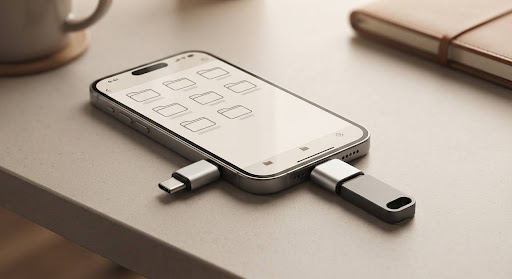
- Check the file system. iOS reliably reads drives formatted as exFAT or FAT32. NTFS-formatted drives (the Windows default for many external hard drives) generally won’t mount on iPhone at all.
- Rule out a power problem. External hard drives and SSDs often need more power than an iPhone’s port — especially a Lightning port — can supply on its own. If you’re using a Lightning to USB 3 Camera Adapter, it has a second port for a separate power source; connecting external power there can be the difference between a drive that mounts and one that doesn’t.
- Use an original or MFi-certified adapter. Generic, uncertified Lightning-to-USB adapters are a common cause of drives that simply never appear. Apple maintains a public database of MFi-certified accessories if you want to confirm a specific adapter.
- Check the Accessories permission. Go to Settings > Face ID & Passcode (or Touch ID & Passcode), scroll down, and make sure Accessories is allowed to connect without unlocking first, or reconnect the drive right after unlocking your phone.
- Restart and reconnect. Disconnect the drive, restart the iPhone, then reconnect once it’s back up. This resolves a surprising number of one-off detection failures.
- Update iOS. Older iOS versions have had specific bugs affecting external drive detection on certain iPhone models; keeping iOS current avoids most of them.
- Clean the port. Lint and debris in a Lightning or USB-C port are enough to break the data connection while still allowing charging.
If none of that works, test the drive in a computer. If it doesn’t appear there either, the drive — not the iPhone — is the problem.
Why Is My USB Drive Not Showing Up on Android
Android phones use USB OTG (On-The-Go) to act as a host for external drives, and a few Android-specific issues are worth checking before assuming anything is broken.
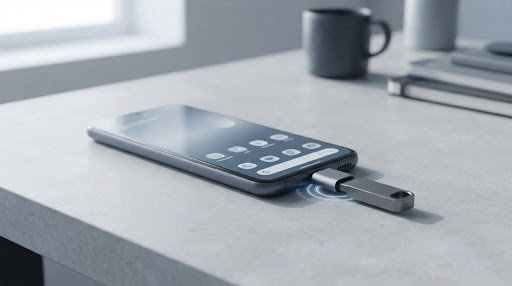
- Confirm your phone actually supports OTG. Not every Android phone does, including some budget models. Check Settings > About phone for a USB OTG or USB Host mention, or simply test with a drive and adapter you know works on another Android phone.
- Suspect the adapter before the drive. USB-C-to-USB-A OTG adapters are inexpensive and fail often. If a drive that works on a computer doesn’t work through OTG, try a different adapter before troubleshooting anything else.
- Check the file system. Android’s built-in file manager typically reads FAT32 and exFAT without issue but can struggle with NTFS-formatted drives, sometimes showing the drive with zero files instead of an error. A third-party file manager built for external storage, or reformatting the drive to exFAT, usually resolves this.
- Power matters for external hard drives. A USB flash drive draws little power, but a spinning external hard drive often needs more than a phone’s OTG port can supply. A powered USB hub between the phone and the drive, or switching to a small USB-C SSD instead of a hard drive, solves this.
- Enable USB file transfer mode. After connecting, pull down the notification shade and confirm the USB connection is set to File Transfer, not Charging only.
- Restart the phone. As with most connectivity glitches, a restart clears a surprising number of one-off OTG detection failures.
When It Might Mean the Drive Is Failing
Most USB detection problems are fixable with the steps above. Treat it as a genuine hardware warning sign if any of these apply:
- The drive fails to appear on multiple different computers, ports, and cables — not just one setup.
- Disk Management shows the drive as “Not Initialized”, “RAW,” or it disappears mid-scan.
- You hear repeated clicking, grinding, or spinning-up-and-down sounds from a mechanical hard drive.
- chkdsk reports errors it can’t repair, or the scan itself fails to complete.
If you recognize any of those patterns and the drive holds data you need, stop running repeated scans and repair attempts — on a genuinely failing drive, that can make data recovery harder rather than easier. Back up whatever is still accessible immediately, and if the data is important enough to justify it, a professional data recovery service is a safer option than continued troubleshooting.
How to Avoid This Next Time
- Format shared drives as exFAT if you move files between Windows, Mac, Android, and iOS. It’s the one file system all of them read natively.
- Always eject drives properly before unplugging — “Safely Remove Hardware” on Windows, or ejecting from Files/Finder — rather than pulling the cable, which is a common cause of file system corruption.
- Use quality cables and, where possible, direct ports rather than hubs, especially for external hard drives and SSDs that draw meaningful power.
- Keep a backup of anything on a single flash drive. USB flash drives are inexpensive and fail without warning; treating one as your only copy of anything important is the riskiest part of this whole process.
FAQ
Why does my USB drive show up on one computer but not another? This almost always points to a driver, port, or Windows-configuration issue on the computer that doesn’t detect it — not a problem with the drive itself. Check Device Manager for driver errors and try a different USB port first.
Is it safe to format a USB drive that Windows won’t recognize? Only after you’ve confirmed there’s no way to recover the files on it, or you’ve already backed them up elsewhere. Formatting erases the drive completely and can’t be undone through Windows.
Why does Windows ask me to format the drive every time I plug it in? This means Windows can see the drive’s hardware but doesn’t recognize its file system — often because it was formatted on a Mac (APFS) or Linux system (ext4). Don’t format it in Windows if the drive has files you need; recover them from the original operating system first.
Can a USB hub cause a drive not to show up? Yes. Unpowered or cheap hubs frequently can’t supply enough current for a flash drive or external hard drive to fully initialize, especially with other devices connected to the same hub.
Will an NTFS-formatted drive work on iPhone or Android? Not reliably. iOS generally won’t mount NTFS drives at all, and Android’s default file manager often can’t read them properly either. exFAT is the safest format for a drive you’ll use across Windows, Mac, iPhone, and Android.
My USB drive makes a sound when I plug it in but never appears anywhere. What does that mean? The connection and power are working, which rules out the cable and port. From there, check Disk Management (Windows) or Device Manager for driver errors before considering the drive itself to be failing.
Do I need special software to fix a USB drive that’s not showing up? No, for the vast majority of cases. Disk Management, Device Manager, and the built-in chkdsk and diskpart tools in Windows handle almost every cause described here without any third-party software.